

Menu bar getting in your way?
If you find your Mac’s menu bar gets in your way did you know you can automatically hide (or show) it?.
Whether you’re aware, or not, the menu bar (mb) has been available on macOS since its launch, in 1984. However, only since macOS 10.11 (El Capitan) can you very simply configure the mb to hide it. Here’s what you need to do:
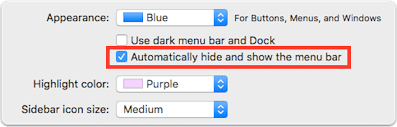
Open System Preferences and choose General.
Click “Automatically hide and show the mb.”
When you check this box, the mb will reappear as you navigate the cursor near the top of the screen.
An additional mb related tip is to rearrange the status menu icons: Press and hold the Command key while dragging the icons and to remove an icon. Our final tip is to press and hold the Command key if you want to drag the icon out of the mb.
Read about Mojave’s screenshot tool
We don’t charge a penny to check your Mac…

Any OS X icons in your mb can be moved around with Command+Drag. That means if you hold down the Command key while clicking on an icon, you can drag it anywhere you want on the mb.
If you removed a system icon from the mb and would like it back, or if you’d like to add a fresh one, you can find options in the associated preference panes:
- Click the Apple menu-bar and choose System Preferences.
- Click on the Display preference pane.
- Check the “Show mirroring options in the menu bar when available” box.


